
Greetings, techies! Marta here.
The HDMI cable remains the undisputed king of connections. This cable, which seems specifically designed to tangle with all the other cables you have, offers the most reliable, highest-quality connection. You simply plug one end into your device and the other into the television, select the corresponding HDMI input on your TV, and voilà! You’ve mirrored your screen with excellent image and sound quality. It’s the simplest, most direct option, like making a Spanish tortilla with just eggs and potatoes: basic but effective.
However, HDMI has its limitations. The main one is obvious: you need a physical cable, which means your device must be relatively close to the television. What’s more, not all modern devices, especially the slimmer ones, include a full HDMI port. Many ultra-thin laptops and practically all smartphones and tablets require specific adapters, which adds extra cost and one more thing to forget when you leave the house. It’s like taking flip-flops to the beach: it seems simple until you realize you’ve forgotten something essential.
For Apple devices, we have specific options. If you have an iPhone, iPad or Mac, you can use AirPlay to stream your screen wirelessly to an Apple TV or to AirPlay-compatible televisions. Setup is simple: make sure both devices are on the same WiFi network, activate screen mirroring from your Apple device, select the receiver and done. The quality is excellent and you need no cables, although you do need an Apple TV or a compatible television, which can be a considerable investment if you don’t have one already. It’s like having an automatic watering system for your plants: convenient and efficient, but with a significant initial cost.
For the Android and Windows ecosystem, we have options like Chromecast, Miracast or DLNA. Chromecast, Google’s little dongle, is probably the most popular and simplest option. You plug it into an HDMI port on your television, configure it with the Google Home app, and you can send content from your phone, tablet or from Chrome on your computer. It isn’t a full screen mirror in all cases, but rather a way to send specific content (videos, photos, music) to the TV. To mirror the full screen, you’ll need an Android device or use the Chrome tab on a computer. It’s like having a universal remote: it doesn’t do absolutely everything, but it covers most everyday needs.
Miracast is a standard that enables wireless screen mirroring between compatible devices. Many modern televisions include it as standard, and Windows supports it natively since Windows 8.1. Setup varies by device, but it generally involves activating the “Project” or “Wireless display” option on your device and selecting the television as the receiver. Quality can vary and depends heavily on your WiFi network, but when it works well, it’s an elegant, cable-free solution. It’s like Bluetooth headphones: wonderful when they work without a hitch, maddening when there are connection problems.
For the more tech-savvy, there are DLNA (Digital Living Network Alliance) based solutions, a protocol that allows sharing multimedia content between devices on the same network. It isn’t as intuitive as the previous options and generally requires specific apps on both the sending and receiving devices, but it can be very versatile once set up. It’s like having a complex home-automation system: there’s a learning curve, but the possibilities are enormous.
USB-C to HDMI or DisplayPort adapters are another increasingly common option, especially for modern laptops that have abandoned traditional HDMI ports in favor of the more versatile USB-C. These adapters are relatively inexpensive and easy to use, although they add one more item to your collection of cables and adapters. It’s like carrying a plug adapter when you travel abroad: a small inconvenience that solves a big problem.
For more specific situations, such as business or educational presentations, there are solutions like dedicated wireless presentation systems. These devices usually consist of a receiver that connects to the television or projector and a transmitter that connects to your computer, creating a direct connection without relying on the WiFi network. They’re more expensive than consumer options, but offer greater reliability and specific features for professional environments. It’s like having a company car: more expensive but more reliable and with specific features for work.
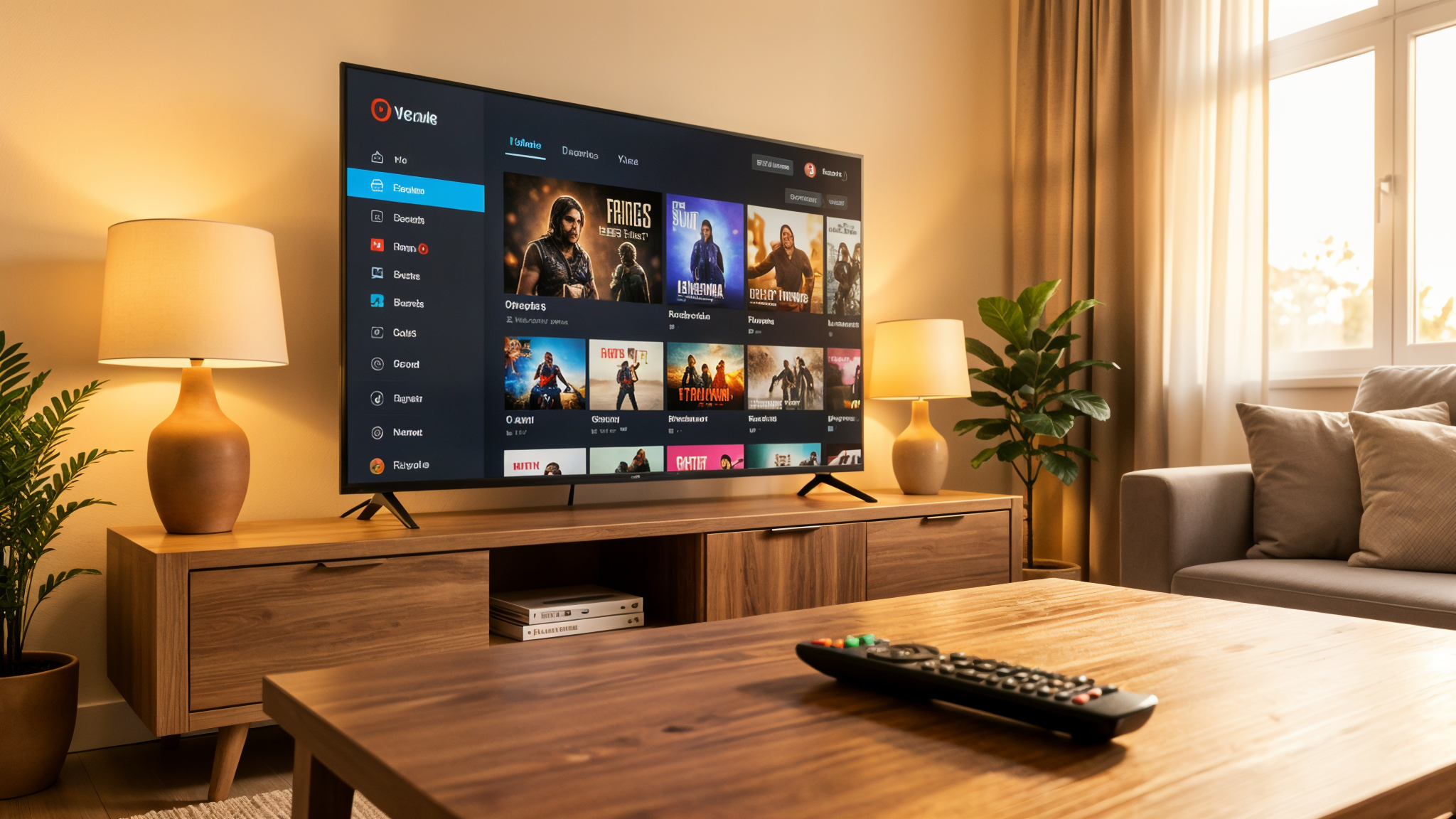
Modern Smart TVs sometimes include apps that make it easier to connect with specific devices or cloud services. For example, some allow direct access to Google Drive, Dropbox or OneDrive, which can be an alternative to screen mirroring for showing presentations or documents. It isn’t as flexible as having total control over what’s displayed, but it can be enough for many use cases. It’s like using public transport instead of your own car: it doesn’t take you exactly where you want, but sometimes it’s more than enough.
In conclusion, there are multiple ways to connect your device to a television, each with its own pros and cons. The choice will depend on your specific devices, your needs and, of course, your budget. From the humble but effective HDMI cable to sophisticated wireless solutions, technology offers us options for every taste and situation. The important thing is to find the one that best fits your technological ecosystem and your usage habits. Because at the end of the day, few things are as satisfying as watching that cat video in giant size on your 55-inch television. Until next time, tech friends!