
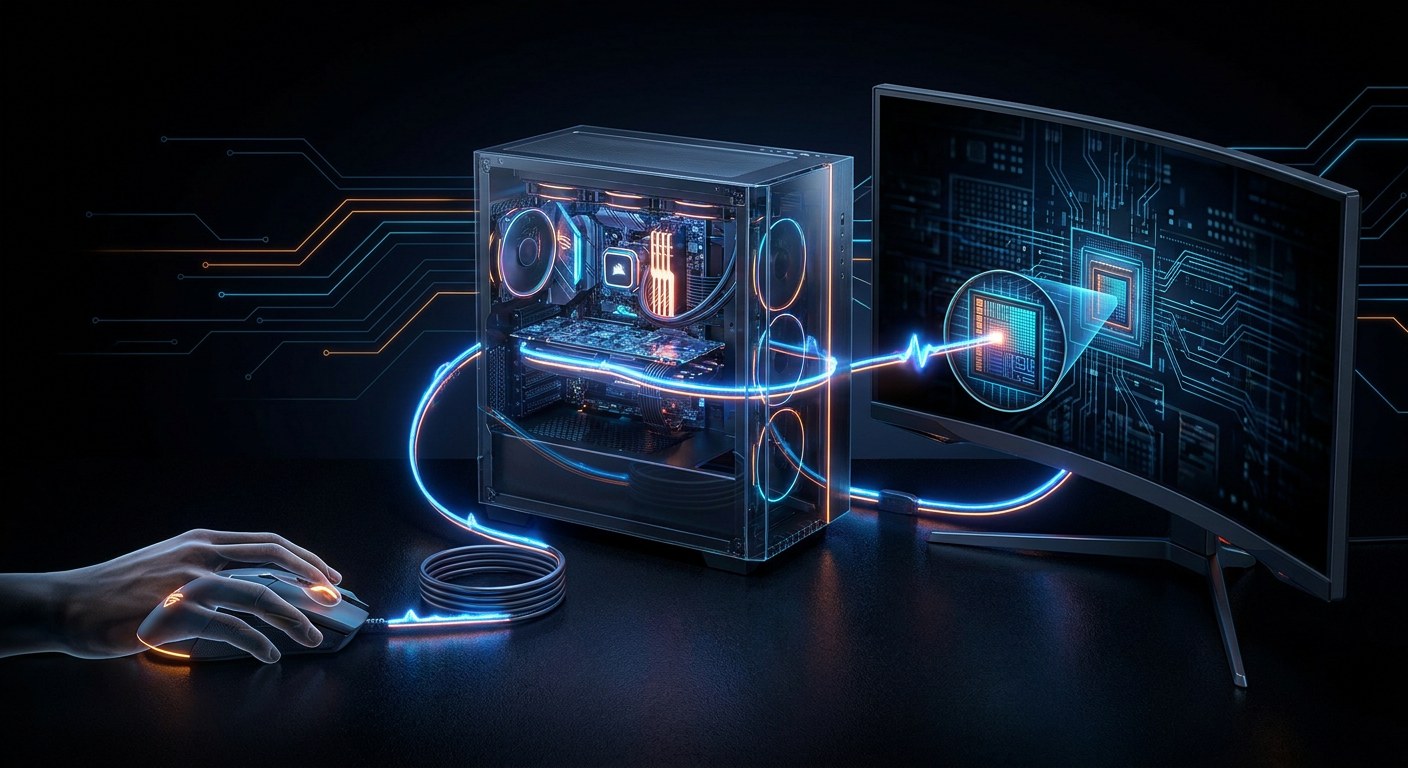
Between your finger pressing the mouse and the pixel changing colour, roughly twenty milliseconds pass. You do not feel them, but in that instant the signal travels an entire chain of hardware and software: a mechanical switch, a microcontroller, a USB bus, the Linux kernel, the graphics stack, the graphics card and the display panel. Every link adds its own delay, and understanding where the milliseconds go is understanding why a PC feels “fast” or “sluggish”.
1. The switch and its bounce
It all starts with a physical contact. When you press the button, two metal pieces touch, but not cleanly: for a few tens of microseconds the contact “bounces”, opening and closing several times. That phenomenon is called mechanical bounce, and if it is not filtered the system would read a burst of clicks instead of a single one. Mice solve it with debounce: a filter, normally in the microcontroller’s firmware, that ignores state changes during the first few milliseconds.
The microcontroller (MCU), a tiny chip with its own CPU and memory, samples the switch state at a frequency called the polling rate. A standard mouse polls at 125 Hz, i.e. it checks every 8 milliseconds; gaming models reach 1000 Hz, one check per millisecond. That margin is already the first part of the latency: how long it takes to “notice” that you pressed.
2. USB and its report protocol
When the MCU detects the click, it builds an HID report (Human Interface Device): a small data structure stating which button changed and with what values. The mouse sends it over USB as an interrupt transfer, a transaction type designed for low-latency data that travels in 1-millisecond frames (or 125-microsecond frames on USB 3.x).
Here the HID descriptor comes into play, the “datasheet” the device presents to the system: it defines how many buttons it has, the sensor resolution and the exact format of each report. Without that descriptor the operating system could not interpret the incoming bytes.
3. The kernel: from interrupt to event
The bytes enter the host through the USB controller and the input subsystem of the Linux kernel. This set of modules (known through the evdev file, which exposes those events to user space) converts each raw frame into an input event: a tuple defining the type (for example, left button), the code and the value. It is the same path the keyboard takes, so a single mouse can feed several applications at once.
The interesting part is that latency here is minimal but the design matters: events are queued and delivered to the process waiting for them. A process sleeping while waiting for input can take a little longer to wake up, something the gaming world fights with low-latency mode and with system calls such as poll and epoll.
4. The compositor decides when to paint
The event now reaches the application (a game, a browser) through the compositor, the process that manages the screen. On modern Linux this is Wayland (or the veteran X11): the compositor does not just draw, it decides when each application may write pixels, synchronising everything with the monitor’s refresh rate.
The application receives the event, updates its game logic, redraws the scene and hands it to the compositor. This rasterises it (turns it into pixels) and combines it with the other windows into a final frame, waiting for it to be ready just in time for the next V-Sync, the vertical pulse with which the monitor signals “I am ready for a new frame”.
5. The graphics card and the cable
The finished frame travels to the GPU, which stores it in the frame buffer, the video memory holding the current image. From there the card’s display controller reads it and sends it down the cable – DisplayPort or HDMI – as a constant-rate stream of pixels. If the game produces more frames than the monitor accepts, tearing appears (the image splits); that is why G-Sync/FreeSync adjust the monitor’s refresh rate to the GPU’s, rather than the other way round.
For high refresh rates the cables use DSC (Display Stream Compression), which compresses the image without perceptible loss so it fits in the available bandwidth. It is another link that, misconfigured, can add latency.
6. The panel: the slowest link
The last leg is physical. The panel must change the state of its pixels, and that has a measurable cost: the response time (how long a pixel takes to move from one shade to another) and the input lag of the monitor’s own processor. A VA panel can take 10-20 ms on a hard transition; a good IPS, 4-5 ms; an OLED, 0.1 ms. And there is MPRT (Motion Picture Response Time), which measures how long the eye really sees a frame: when the panel refreshes slowly, motion is perceived as blurry even though the rate is high.
The total budget
Add up the journey: 1 ms of polling, 1-4 ms of the USB and the kernel, 2-5 ms from the event to the application, the render time (which depends on graphics power), 1-2 ms of compositing and the V-Sync (up to 16 ms if you refresh at 60 Hz), and finally 5-20 ms of the panel. The result is roughly 20-50 ms depending on the machine. That is the secret of a game “running smoothly”: it is not a single improvement, but shaving a few milliseconds off each link. Next time your finger goes down, you now know what happens before the screen notices.